
How to use Add To Cart Anywhere with Shopify Sidekick
Shopify Sidekick, the AI assistant in your Shopify admin, can answer questions about Add To Cart Anywhere for you. Ask in everyday language and Sidekick shows your app's status, performance and settings for the store you're working in. You don't need to open the app.
Before you start
- Add To Cart Anywhere must be installed on your store.
- Sidekick must be available in your Shopify admin.
- The app must be enabled in Sidekick (see below)
Enable the app in Sidekick
Shopify allows up to 20 apps to be enabled in Sidekick at the same time for each user on a store. If Add To Cart Anywhere isn't enabled there, Sidekick can't answer questions about it.
To check or enable it:
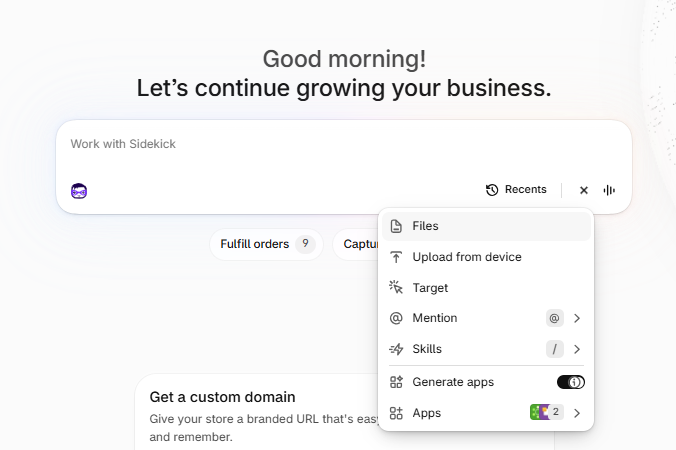
- In your Shopify admin, go to the Work with Sidekick box.
- Click the + icon in the Sidekick bar.
-
Select Apps. The number next to it shows how many apps are currently enabled.
-
Find CBB Add To Cart (this is how Add To Cart Anywhere appears in Sidekick) and turn on its toggle.
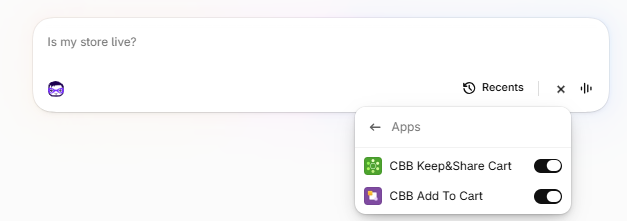
If you already have 20 apps enabled, turn off an app you use less often in Sidekick, then turn on CBB Add To Cart. You can switch apps back at any time. Disabling an app here only affects Sidekick; the app keeps working normally in your store.
What you can ask Sidekick
1. Get a quick overview of the app
Sidekick can summarize what you'd see on the app's Dashboard:
- Your subscription status and, if you're on a free trial, how many trial days you have left.
- Which storefront pages show the widget: home page, search results, product pages, collection pages and cart page.
- Important notices, for example when the app detects that your theme has changed.
- A snapshot of the last 30 days: widgets rendered and viewed, products added to the cart, conversions and the converted amount (sales).
Try asking:
- Give me an overview of Add To Cart Anywhere.
- How many trial days do I have left in Add To Cart Anywhere?
- How much did Add To Cart Anywhere generate in the last 30 days?
2. Analyze performance and conversions
Sidekick can report your widget statistics for the last month or the last year:
| Metric | What it means |
|---|---|
| Rendered | How many times the widget loaded on your storefront. |
| Viewed | How many times shoppers actually saw the widget. |
| Added | How many times shoppers added a product to the cart from the widget. |
| Converted | How many of those additions ended in a purchase. |
Sidekick also calculates the rate at each step (rendered → viewed, viewed → added, added → converted), so you can see where shoppers drop off.
If you don't name a period, Sidekick picks the most useful one: the last month if you installed the app less than 3 months ago, otherwise the last year. It tells you which period it used. These are not all-time totals.
Try asking:
- Show me Add To Cart Anywhere statistics for the last month.
- How did Add To Cart Anywhere perform over the last year?
- Where are shoppers dropping off in the Add To Cart Anywhere funnel?
3. Check where the buttons appear
Sidekick can tell you:
- Which pages the widget is enabled on.
- Where the buttons are placed on desktop and mobile: the page element they're attached to (the selector) and their position relative to it.
Try asking:
- On which pages are the Add To Cart Anywhere buttons shown?
- Where are the Add To Cart Anywhere buttons placed on mobile?
4. Review how the widget looks
Sidekick can describe your current design settings:
- Add to cart button: button text, the text shown after a product is added, whether the button returns to its original text, and its styles (colors, border, font).
- Variant selector: whether it's shown, whether it shows prices, updates the product image, shows unavailable variants and uses a separate selector for each option, plus its label and styles.
- Quantity selector: whether it's shown, its default quantity and its styles.
- Sold-out button: whether it's shown, its text and its styles.
- Alignment of the widget. See Widgets alignment
Try asking:
- What text does my Add To Cart Anywhere button show?
- Is the quantity selector enabled in Add To Cart Anywhere?
- Does Add To Cart Anywhere show a sold-out button?
- What colors and fonts does the Add To Cart Anywhere button use?
5. Review advanced settings
Sidekick can tell you:
- What happens after a shopper clicks "Add to cart": they go to the cart page, the product page or checkout, or they stay on the same page.
- Whether lazy loading is on. See Lazy loading option
- Whether automatic configuration is on.
- Whether translations are on, plus your store's primary language and any other languages. See How can I display the widget texts translated?.
Try asking:
- What happens when a shopper clicks the Add To Cart Anywhere button?
- Is lazy loading enabled in Add To Cart Anywhere?
- Which languages is Add To Cart Anywhere translated into?

Making changes
Sidekick can't change Add To Cart Anywhere settings. When you ask how to change something, Sidekick gives you a link to the matching section of the app, for example the Dashboard, Analytics, Visual, Advanced or Location settings. Open the link, make your changes and save them in the app.
Good to know
- Statistics cover the last month or the last year. They aren't all-time totals.
- Sidekick only shows data from the store you're signed in to.
- Sidekick is an AI assistant, so its answers may sometimes be incomplete. If something doesn't look right, check the data directly in the app using the link in the answer.
If you have any questions, or Sidekick doesn't answer as expected, please contact our customer support and we'll be happy to help.