
How to use Keep & Share Your Cart with Shopify Sidekick
Shopify Sidekick, the AI assistant in your Shopify admin, can answer questions about Keep & Share your Cart Link for you. Ask in everyday language and Sidekick shows your app's status, sharing activity and settings for the store you're working in. You don't need to open the app.
Before you start
- Keep & Share Your Cart must be installed on your store.
- Sidekick must be available in your Shopify admin.
- The app must be enabled in Sidekick (see below).
Enable the app in Sidekick
Shopify allows up to 20 apps to be enabled in Sidekick at the same time for each user on a store. If Keep & Share Your Cart isn't enabled there, Sidekick can't answer questions about it.
To check or enable it:
- In your Shopify admin, go to the Work with Sidekick box.
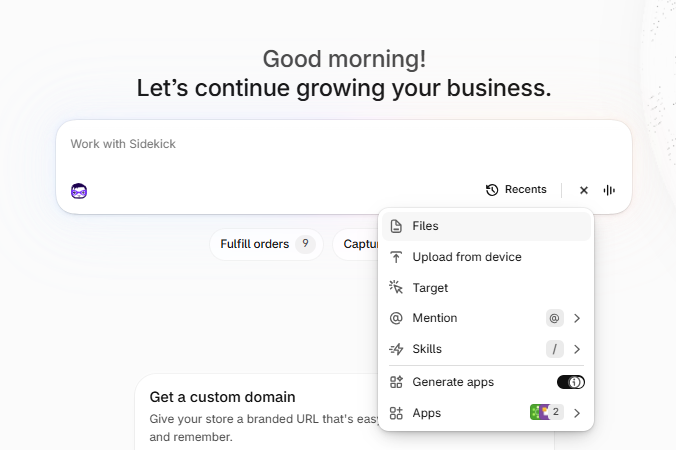
- Click the + icon in the Sidekick bar.
-
Select Apps. The number next to it shows how many apps are currently enabled.
-
Find CBB Keep&Share Cart (this is how Keep & Share Your Cart appears in Sidekick) and turn on its toggle.
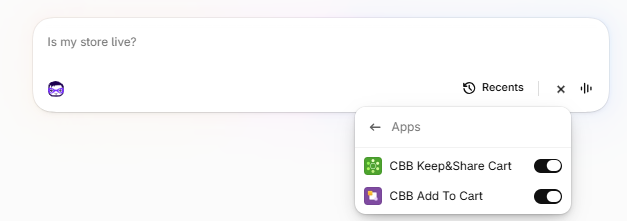
If you already have 20 apps enabled, turn off an app you use less often in Sidekick, then turn on CBB Keep&Share Cart. You can switch apps back at any time. Disabling an app here only affects Sidekick; the app keeps working normally in your store.
What you can ask Sidekick
1. Get a quick overview of the app
Sidekick can summarize what you'd see on the app's Dashboard:
- Your subscription status and, if you're on a free trial, how many trial days you have left.
- How many shared cart links your customers have created.
- How many times those shared cart links have been clicked.
- Which sharing methods are enabled.
- Important notices, for example when the app detects that your theme has changed.
Try asking:
- Give me an overview of Keep & Share Your Cart.
- How many trial days do I have left in Keep & Share Your Cart?
- How many times have my shared cart links been clicked?
2. Analyze sharing activity
Sidekick can tell you how many shared cart links your customers created in the last month or the last year, and how that activity changed over the period.
If you don't name a period, Sidekick picks the most useful one: the last month if you installed the app less than 3 months ago, otherwise the last year. It tells you which period it used. These are not all-time totals.
Try asking:
- How many shared cart links were created last month in Keep & Share Your Cart?
- Show me the Keep & Share Your Cart sharing trend for the last year.
- Are more customers sharing their carts with Keep & Share Your Cart than before?
-
Review how the widget looks
Sidekick can describe your current widget design:
- Title: the title text and its font color, size and style. See How can I configure the text of the title?
- Alignment of the widget.
- Icons: their size, their shape (square or round) and whether they use each network's original colors or your own custom icon and background colors. See How can I configure the size of the social icons? and How can I change the color of the icons?
- Shared message: the text that's sent together with the shared cart link.
Try asking:
- What title does my Keep & Share Your Cart widget show?
- Are my Keep & Share Your Cart icons round or square?
- What message is sent when a customer shares their cart?
If the widget isn't showing where you expect it, see The widget is not being located in the right place.
4. Check the sharing methods
Sidekick can tell you which ways of sharing are enabled for your customers:
- Messaging and social networks: WhatsApp, Facebook, X (Twitter), LinkedIn, Pinterest, Telegram, Weibo and Reddit.
- Copy link and email.
It can also show the texts shoppers see while sharing: the tooltip text for the social network, copy and email icons, and the messages shown when the link is copied or can't be copied.
Try asking:
- Which sharing methods are enabled in Keep & Share Your Cart?
- Can my customers share their cart by email?
- What message do shoppers see after copying the cart link?
See also How can I enabled/disabled social links?
5. Review advanced settings
Sidekick can tell you whether:
- Automatic configuration is on.
- Translations are on. See How can I display the widget texts translated?
Try asking:
- Is automatic configuration enabled in Keep & Share Your Cart?
- Is Keep & Share Your Cart set up to show translated texts?

Changing your settings
Sidekick can read your Keep & Share Your Cart settings, but it can't change them. If you ask for a change, for example "Enable Telegram", Sidekick won't make it. Instead, each answer includes a link that opens the right section of the app, so you can make the change yourself:
| What you asked about | Where the link takes you |
|---|---|
| Status and performance | Home |
| Shared carts created over time | Analytics |
| Widget appearance | Visual styles |
| Sharing methods | Social networks |
| Advanced settings | Advanced |
Remember to click Save after changing any setting in the app.
Good to know
- Statistics count the shared cart links created by your customers. They don't include orders or revenue.
- Statistics cover the last month or the last year. They aren't all-time totals.
- Sidekick only shows data from the store you're signed in to.
- Sidekick is an AI assistant, so its answers may sometimes be incomplete. If something doesn't look right, check the data directly in the app using the link in the answer.
If you have any questions, or Sidekick doesn't answer as expected, please contact our customer support and we'll be happy to help.