
How to use Currency Converter+ with Shopify Sidekick
Shopify Sidekick, the AI assistant in your Shopify admin, can answer questions about Currency Converter+ for you. Ask in everyday language and Sidekick shows your app's status, currencies and settings for the store you're working in. It can even check your setup when prices aren't being converted. You don't need to open
Before you start
- Currency Converter+ must be installed on your store.
- Sidekick must be available in your Shopify admin.
- The app must be enabled in Sidekick (see below).
Enable the app in Sidekick
Shopify allows up to 20 apps to be enabled in Sidekick at the same time for each user on a store. If Currency Converter+ isn't enabled there, Sidekick can't answer questions about it.
To check or enable it:
- In your Shopify admin, go to the Work with Sidekick box.
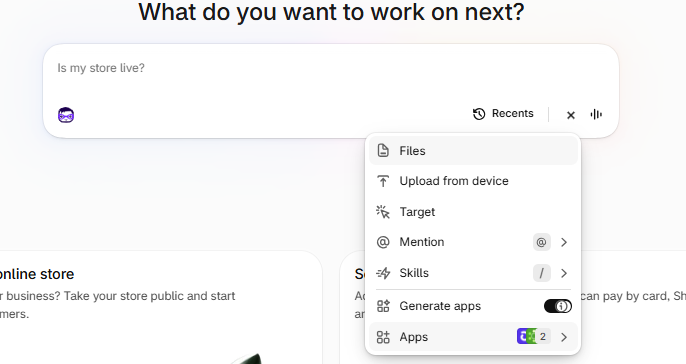
- Click the + icon in the Sidekick bar.
-
Select Apps. The number next to it shows how many apps are currently enabled.
-
Find Currency Converter+ and turn on its toggle.
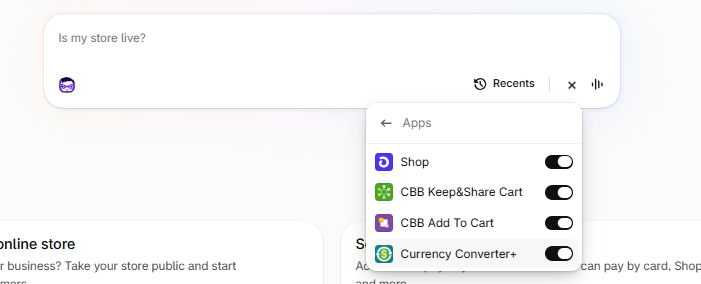
If you already have 20 apps enabled, turn off an app you use less often in Sidekick, then turn on Currency Converter+. You can switch apps back at any time. Disabling an app here only affects Sidekick; the app keeps working normally in your store.
What you can ask Sidekick
1. Get a quick overview of the app
Sidekick can summarize what you'd see on the app's Dashboard:
- Whether the Currency Converter+ app embed is enabled in your theme. Nothing shows on your storefront when it's disabled.
- Your subscription status and, if you're on a free trial, how many trial days you have left.
- Whether price conversion, the currency drop-down chooser and the menu button are enabled.
- Your store currency, the currencies offered in the chooser and the currencies of your Shopify Markets.
- Important notices, for example when the app detects that your theme has changed.
Try asking:
- Give me an overview of Currency Converter+.
- How many trial days do I have left in Currency Converter+?
- Is the Currency Converter+ app embed enabled in my theme?
2. Find out why prices aren't converted
If prices aren't being converted or the currency switcher doesn't appear on your storefront, ask Sidekick to check your setup. It looks for these known issues and explains each one it finds:
- The app embed is turned off in your theme editor, so nothing shows on your storefront.
- Your published theme changed, so the app setup should be reviewed.
- Your store currency is different from your only Shopify Markets currency. The app doesn't work with this setup. To fix it, change your store currency to match the market currency.
- Price conversion is turned off, so prices aren't replaced with converted amounts.
- Both the currency chooser and the menu button are turned off, so shoppers can't change currency.
- No valid currency is selected for the currency chooser.
If Sidekick doesn't find any of these issues, see Some prices are not detected in my store.
Try asking:
- Why aren't my prices being converted by Currency Converter+?
- Check my Currency Converter+ setup for problems.
- Why don't shoppers see the currency switcher?
3. Check your currencies
Sidekick can tell you:
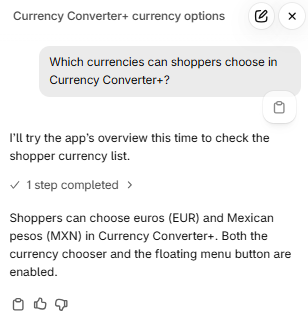
- Which currencies shoppers can choose in the drop-down chooser.
- Your default conversion currency, if you set one. When no default is set, the app detects each visitor's currency from their location. See Can I change the currency displayed by default on my store?
- Whether prices can be converted to a visitor's autodetected currency even if that currency isn't in your chooser. See Does the currency automatically change depending on the IP connection?
- Your store currency and your Shopify Markets currencies.
- Whether the app supports a specific currency.
Try asking:
- Which currencies can shoppers choose in Currency Converter+?
- Does Currency Converter+ support the Swiss franc?
- Is there a default conversion currency in Currency Converter+?
4. Review how prices and widgets look
Sidekick can describe your current design settings:
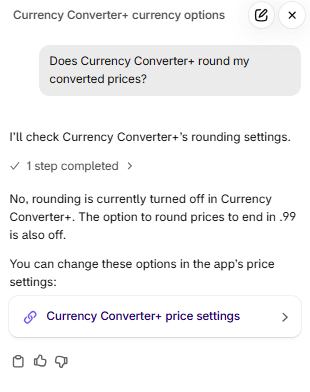
- Converted prices: whether prices are replaced with converted amounts, and your rounding options: rounding to whole numbers, rounding only converted prices, and ending prices in .99. See How do I remove decimals from my prices?
- Price style: text and background colors, whether the currency code and flag are shown, flag size and border.
- Currency drop-down chooser: whether it's enabled, whether it uses short currency names, and its colors and flag size.
- Menu button: whether it's enabled, whether it shows the flag, currency and arrow, and its colors and border.
- Cart note: the text shown in the cart when the shopper's currency isn't the checkout currency.
Try asking:
- Does Currency Converter+ round my converted prices?
- What does the Currency Converter+ menu button show?
- What does the Currency Converter+ cart note say?
5. Check where the widgets appear
Sidekick can tell you where the menu button appears on desktop and mobile: whether it's in a fixed position on the screen or attached to an element of your theme, and its offsets. It can also tell you where the cart note is placed on desktop and mobile.
Try asking:
- Where is the Currency Converter+ menu button on mobile?
- Where does the Currency Converter+ cart note appear?
6. Review advanced settings
Sidekick can tell you whether:
- Dynamic prices is on. This option updates prices that are created or changed after the page loads, for example by cart drawers, variant pickers or other apps.
- Cart tracking attributes are on. They add the selected currency and exchange rate to your Shopify orders.
- Automatic configuration is on.
- Translations are on, plus your store's primary language and any other languages.
- Any custom price selectors are set up.
Try asking:
- Is dynamic prices enabled in Currency Converter+?
- Does Currency Converter+ add the currency to my orders?
- Which custom selectors are configured in Currency Converter+?
7. Check storefront translations
Sidekick can show the texts Currency Converter+ displays on your storefront in any of your store languages, including market-specific adaptations. For each text, it shows the original value, the translated value and whether it's translated, so you can quickly find texts that still need translating. See the Translations articles.
Try asking:
- Which Currency Converter+ texts are still untranslated in French?
- Show me the Currency Converter+ cart note in Spanish.
-
Show the Currency Converter+ German texts for my European market.
Making changes
Sidekick can't change Currency Converter+ settings. When you ask how to change something, Sidekick gives you a link to the matching section of the app, for example the Dashboard, Currencies, Converted prices, Drop-down chooser, Menu button, Cart note, Advanced or Translations settings. Open the link, make your changes and save them in the app.
Good to know
- Say the app's name. Include "Currency Converter+" in your question so Sidekick knows which app you mean.
- Ask one thing at a time. Short, specific questions get the clearest answers.
- Shopify Markets currencies: Shopify converts the prices for currencies you sell in through Shopify Markets. Rounding, dynamic prices, cart tracking attributes and the cart note don't apply to those currencies.
- Checkout: Sidekick shows how prices look on your storefront. To learn how prices behave at checkout, see Are prices converted on the checkout pages?
- One store at a time. Sidekick only shows data from the store you’re signed in to.
- Double-check important answers. Sidekick is an AI assistant, so its answers may sometimes be incomplete. If something doesn’t look right, check the data directly in the app using the link in the answer.
If you have any questions, or Sidekick doesn't answer as expected, please contact our customer support and we'll be happy to help.