
How to use Video Background with Shopify Sidekick
Shopify Sidekick, the AI assistant in your Shopify admin, can answer questions about Video Background for you. Ask in everyday language and Sidekick shows your app's status, the videos you've configured, where they appear and how they play, for the store you're working in. It can even check a video's setup when it isn't showing. You don't need to open the app.
Before you start
- Video Background must be installed on your store.
- Sidekick must be available in your Shopify admin.
- The app must be enabled in Sidekick (see below).
Enable the app in Sidekick
Shopify allows up to 20 apps to be enabled in Sidekick at the same time for each user on a store. If Video Background isn't enabled there, Sidekick can't answer questions about it.
To check or enable it:
- In your Shopify admin, go to the Work with Sidekick box.
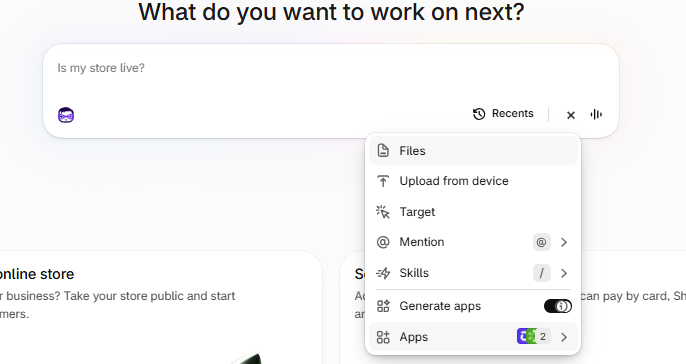
- Click the + icon in the Sidekick bar.
-
Select Apps. The number next to it shows how many apps are currently enabled.
- Find Video Background and turn on its toggle.
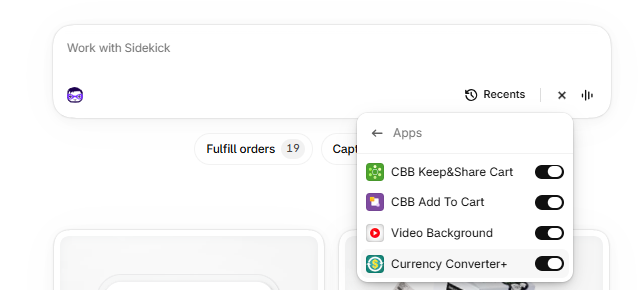
If you already have 20 apps enabled, turn off an app you use less often in Sidekick, then turn on Video Background. You can switch apps back at any time. Disabling an app here only affects Sidekick; the app keeps working normally in your store.
How Sidekick refers to your videos
Each video you configure in Video Background is saved as a playlist with a unique name, such as Playlist 3. It's the name you see in the Name column of the app's dashboard. Sidekick always uses these names, so you can easily find the same video in the app. Use them in your questions too, for example "Show me the settings of Playlist 3".
The app assigns playlist names, and you can't change them.
What you can ask Sidekick
1. Get a quick overview of the app
Sidekick can summarize what you'd see on the app's Dashboard:
- Whether the Video Background app embed is enabled in your theme. No videos show on your storefront when it's disabled.
- Your subscription status and, if you're on a free trial, how many trial days you have left.
- How many videos you've configured, how many are enabled and how many are TikTok videos.
Try asking:
- Give me an overview of Video Background.
- How many videos are enabled in Video Background?
- Is the Video Background app embed enabled in my theme?
2. Find your videos
Sidekick can list your configured videos or find specific ones. You can search by:
- Playlist name, for example Playlist 3.
- Page: the home page, a specific page (for example /pages/about), the 404 error page or all pages.
- Video link: all or part of a YouTube, Vimeo or TikTok link or video ID.
- Video type: full-page background, section background, responsive content video or element replacement. See Which types of videos can I configure using Video Background?
For each video, Sidekick shows its playlist name, whether it's enabled, the video provider, the page and video type, and the first video links. Sidekick lists up to 10 videos at a time. If you have more, ask it to show the next ones. To see the full video links, open the video in the app.
Try asking:
- List my Video Background videos.
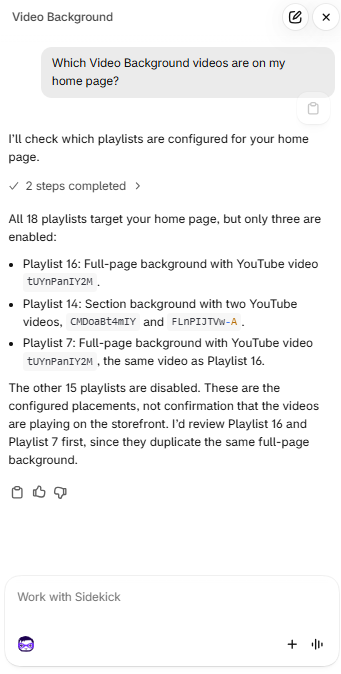
- Which Video Background videos are on my home page?
- Which playlist uses this YouTube video: https://youtu.be/…?
- Do I have any TikTok videos in Video Background?
3. Review a video's settings
For a specific playlist, Sidekick can describe:
- Placement: the page element the video is attached to (the selector) and its position, on desktop and mobile. See How to place a Video Background differently on desktop and mobile?
- Playback: whether the video autoplays, is muted, loops and is shown on mobile, and whether play and sound controls are shown.
- Appearance: video and section transparency, vertical and horizontal padding, and the gradient color. See Can I remove the gradient displayed at the top and bottom of the video?
- Click-through link: where shoppers go when they click the video, and whether the link opens in a new tab.
Try asking:
- Show me the Video Background settings of Playlist 3.
- Is the sound turned on for the video on my home page?
- Does Playlist 2 show on mobile?
- Where does Playlist 5 link to when shoppers click it?
4. Find out why a video isn't showing
If a video doesn't appear or doesn't play as expected, ask Sidekick to check that playlist. It looks for these known issues and explains each one it finds:
- The app embed is turned off in your theme editor, so no videos show on your storefront.
- The video is disabled in the app.
- A video link is missing.
- A video link isn't recognized as a YouTube, Vimeo or TikTok video.
- No page element is selected for a video that needs one. Full-page backgrounds don't need one. See How to obtain an element selector.
- The video autoplays with sound, which many browsers block. This doesn't always happen, but it's a common reason a video doesn't start. See My video autoplays but sound is not working.
Sidekick checks your app configuration only. If it doesn't find any issue, that doesn't guarantee the video plays on your storefront. In that case, see the Troubleshooting articles, for example My video isn't autoplaying on mobile.
Try asking:
- Why isn't the video on my home page showing?
- Check Playlist 3 in Video Background for problems.
5. Review advanced settings
Sidekick can tell you whether automatic configuration is on.
Try asking:
- Is automatic configuration enabled in Video Background?
Making changes
Sidekick can't add, edit, enable or disable videos. When you ask how to change something, Sidekick gives you a link to the matching section of the app, for example the Dashboard, a video's location or preferences, or the Advanced settings. Open the link, make your changes and save them in the app.
To add a new video, ask Sidekick for the setup link. YouTube and Vimeo videos and TikTok videos have separate setup links. See also Getting started with Video Background.
Good to know
- Say the app's name. Include "Video Background" in your question so Sidekick knows which app you mean.
- Use playlist names. Refer to videos by the name shown on the app's dashboard, such as Playlist 3, or by the page they're on.
- Ask one thing at a time. Short, specific questions get the clearest answers.
- One store at a time. Sidekick only shows data from the store you're signed in to.
- Double-check important answers. Sidekick is an AI assistant, so its answers may sometimes be incomplete. If something doesn't look right, check the data directly in the app using the link in the answer.
- Sidekick doesn't answer? Check that Video Background is turned on in the Sidekick Apps list. If it still doesn't work, contact our support team and include a screenshot of your Sidekick conversation.