
How to use Frequently Bought Together with Shopify Sidekick
Shopify Sidekick, the AI assistant in your Shopify admin, can answer questions about Frequently Bought Together for you. Ask in everyday language and Sidekick shows your app's status, the products recommended for any product, your bundles, discounts, widget settings and performance, for the store you're working in. It can even check your setup when the widget isn't showing. You don't need to open the app.
Before you start
- Frequently Bought Together must be installed on your store.
- Sidekick must be available in your Shopify admin.
- The app must be enabled in Sidekick (see below).
Enable the app in Sidekick
Shopify allows up to 20 apps to be enabled in Sidekick at the same time for each user on a store. If Frequently Bought Together isn't enabled there, Sidekick can't answer questions about it.
To check or enable it:
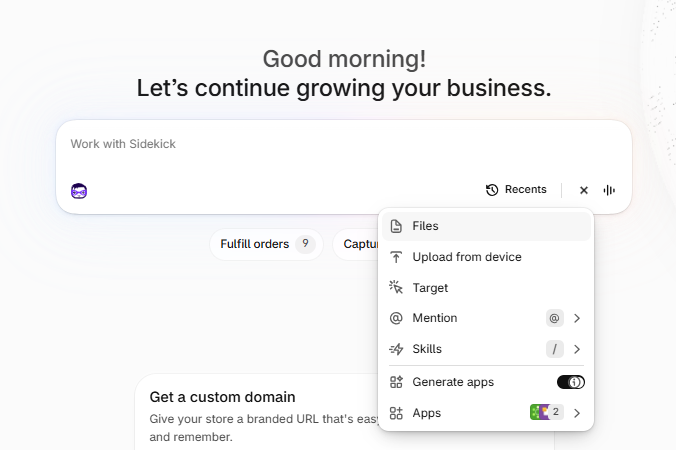
- In your Shopify admin, go to the Work with Sidekick box.
- Click the + icon in the Sidekick bar.
-
Select Apps. The number next to it shows how many apps are currently enabled.
-
Find Frequently Bought (this is how Frequently Bought Together appears in Sidekick) and turn on its toggle.
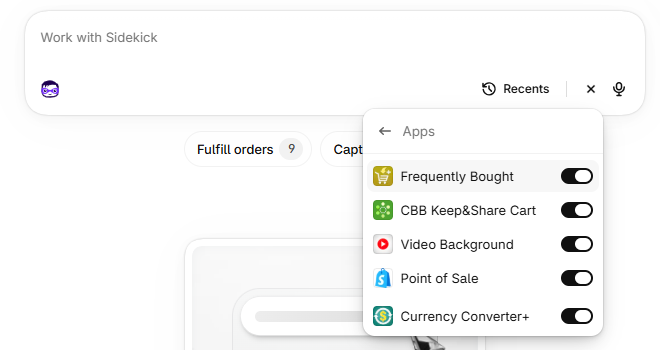
If you already have 20 apps enabled, turn off an app you use less often in Sidekick, then turn on Frequently Bought. You can switch apps back at any time. Disabling an app here only affects Sidekick; the app keeps working normally in your store.
What you can ask Sidekick
1. Check the app status and why the widget isn't showing
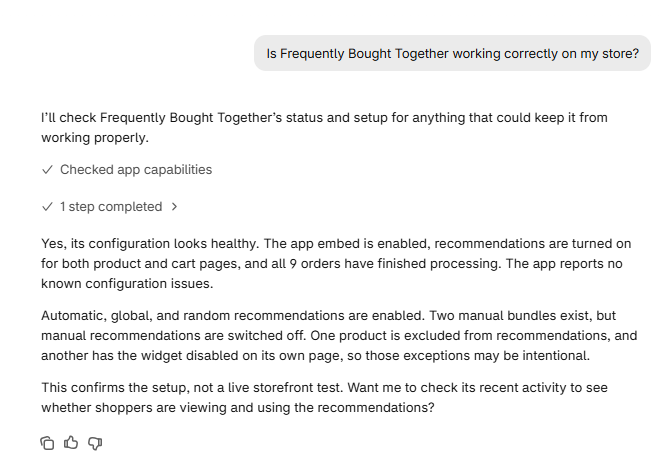
Sidekick can summarize the state of the app:
- Your pricing plan, subscription status and, if you're on a free trial, how many trial days you have left.
- Whether the Frequently Bought Together app embed is enabled in your theme.
- Whether the widget is shown on product pages and on the cart page.
- Which recommendation types are turned on (manual, automatic, global and random) and how many recommendations of each type you have.
- How many products are excluded or have recommendations disabled.
- Whether the global bundle discount is on.
- How far the app has got in analyzing your past orders.
If the widget doesn't appear on your storefront, Sidekick also looks for these known issues and explains each one it finds:
- The app embed is turned off in your theme editor, so nothing shows on your storefront.
- The widget is turned off on both product pages and the cart page.
- The app block isn't added to your product page template, even though product pages are set up to use it.
- Your published theme changed, so the widget position should be reviewed. See How to place the app widget in a different location.
- All recommendation types are turned off (manual, automatic, global and random), so there's nothing to recommend.
- The app is still analyzing your past orders, so automatic recommendations may be incomplete. Sidekick tells you the percentage processed so far.
Try asking:
- Give me an overview of Frequently Bought Together.
- Why isn't the Frequently Bought Together widget showing on my store?
- Has Frequently Bought Together finished analyzing my orders?
2. See what's recommended for a product
Name any product and Sidekick shows which products the widget recommends on its page, grouped by where each recommendation comes from:
- Manual: the products you added to that product's manual bundle. If manual bundles are set to be exclusive, a product with a manual bundle shows only those products. See How do manual recommendations work?
- Automatic: products that customers bought together in past orders. See How do automatic recommendations work?
- Global: products you recommend on every product.
- Random: products used to fill the widget, optionally limited to the same collection, product type, vendor or tag.
Sidekick also tells you the maximum number of products the widget shows, and whether each product is visible on your storefront. If a product is hidden, Sidekick explains why, for example because it isn't published, is out of stock, has no image, was hidden in the app or with a tag, or was deleted. It also tells you if recommendations are disabled for the product, in which case the widget doesn't show on its page.
On the Starter plan, only manual bundles are shown, and Sidekick tells you when that's the case.
Try asking:
- Which products does Frequently Bought Together recommend for the Blue Hoodie?
- Why isn't the Black Cap recommended with the Blue Hoodie?
- Why doesn't the Frequently Bought Together widget show on the Leather Wallet page?
3. Review your manual bundles
Sidekick can list your manual bundles or find one by the name of its main product. It tells you how many bundles you have, how many have their own discount and, on the Starter plan, the maximum number of bundles your plan allows. Sidekick lists up to 10 bundles at a time. If you have more, ask it to show the next ones.
Try asking:
- List my Frequently Bought Together bundles.
- Do I have a Frequently Bought Together bundle for the Blue Hoodie?
- How many bundles can I create on my Frequently Bought Together plan?
4. Check your bundle discounts
Sidekick can describe your global discount:
- Whether it's on, and whether it's a percentage or a fixed amount.
- Its requirements, such as a minimum amount or a minimum number of recommended products, and the maximum number of recommended products it applies to. See How does the minimum bundle price work?
- Whether it can be combined with other discounts, and whether its requirements are relaxed in secondary markets.
- The discount messages shoppers see in the widget.
For a specific manual bundle, Sidekick can also show its own discount and how many of its recommended products are visible.
Which discount applies? On a product page, a manual bundle with its own discount enabled uses that discount; otherwise the global discount applies. The cart page widget always uses the global discount. See Important implications about discounts.
Try asking:
- What discount does Frequently Bought Together offer on bundles?
- Does the Blue Hoodie bundle have its own discount?
- Can the Frequently Bought Together discount be combined with other discounts?
5. Check excluded, disabled and global products
Sidekick can list the products with a special rule, including products added by tag:
- Excluded products: never recommended in any widget.
- Products with recommendations disabled: their own product page doesn't show the widget.
- Global recommendations: products recommended on every product, and whether they're shown in random order.
Try asking:
- Which products are excluded from Frequently Bought Together?
- On which products is the Frequently Bought Together widget disabled?
- What are my Frequently Bought Together global recommendations?
6. Review how the widget looks
Sidekick can describe the widget's appearance and storefront texts, section by section:
- Widget box and layout.
- Title and discount message.
- Prices, including regular, sale and compare-at prices.
- Product image, name, description and rating.
- Checkboxes and variant selector.
- Total section and add-to-cart button.
For each section, it can show texts, colors, sizes, fonts and any custom CSS.
Try asking:
- What title does my Frequently Bought Together widget show?
- What does the Frequently Bought Together add-to-cart button say?
- Which colors does the Frequently Bought Together widget use for sale prices?
7. Analyze performance and revenue
Sidekick can report your widget statistics for the last month or the last year:
| Metric | What it means |
|---|---|
| Rendered | How many times recommendations loaded on your storefront. |
| Viewed | How many times shoppers actually saw them. |
| Clicked | How many times shoppers clicked a recommendation. |
| Added to cart | How many recommended products shoppers added to the cart. |
| Converted | How many of those products were purchased. |
Sidekick also calculates the rate at each step, so you can see where shoppers drop off. It shows the revenue generated by the app in your store currency, split into upsell and cross-sell. See the Statistics articles.
If you don't name a period, Sidekick picks the most useful one: the last month during the first three months after you install the app or approve your plan, otherwise the last year. It tells you which period it used.
Sidekick also tells you whether the app adds a tracking property to the cart items it adds.
Try asking:
- How much revenue did Frequently Bought Together generate last month?
- Show me Frequently Bought Together statistics for the last year.
-
Where are shoppers dropping off in the Frequently Bought Together funnel?
Making changes
Sidekick can't change Frequently Bought Together settings, bundles or discounts. When you ask how to change something, Sidekick gives you a link to the matching section of the app. Examples include the Dashboard, widget position, a product's bundle or recommendations, Discounts, Excluded, Disabled or Global products, a widget appearance section, and Analytics. Open the link, make your changes and save them in the app.
Good to know
- Say the app's name. Include "Frequently Bought Together" in your question so Sidekick knows which app you mean.
- Name the product. For product questions, use the product name as it appears in your Shopify admin. Sidekick looks up the product for you.
- Ask one thing at a time. Short, specific questions get the clearest answers.
- One store at a time. Sidekick only shows data from the store you're signed in to.
- Double-check important answers. Sidekick is an AI assistant, so its answers may sometimes be incomplete. If something doesn't look right, check the data directly in the app using the link in the answer.
- Sidekick doesn't answer? Check that Frequently Bought is turned on in the Sidekick Apps list. If it still doesn't work, contact our support team and include a screenshot of your Sidekick conversation.